

Introduction
This is a basic structure of a pod:
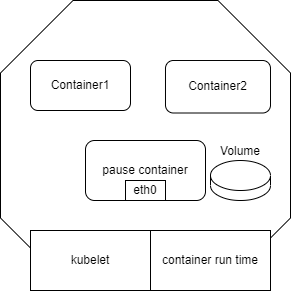
Each pod is an instance, has its own IP address.
A pod can have more than one containers on it, relying on ‘pause container‘ to communicate and share the volume.
Different services container will be put in different pods.
On a single node, pods will communicate with each other using the node/host’s network.
To let pods on different nodes talk to each other, we need to use overlay network created by plugins like flannel.
Pod creation process
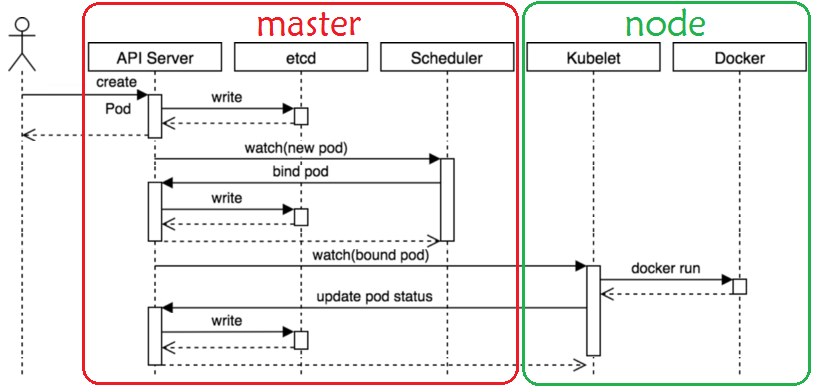
Client send a request to api-server.
api-server write the information to etcd, etcd return the response to api-server, api-server return it to client.
Scheduler watched the new pod resource is created, based on its policies like node status, affinity, etc. to pick a node, then attach the new pod to the picked node.
Update etcd, kubelet will be responsible for the creation of the pod.
Once the new pod is created successfully, kubelet will tell the api-server the status of pod, the api-server then update etcd.
Pod’s lifecycle
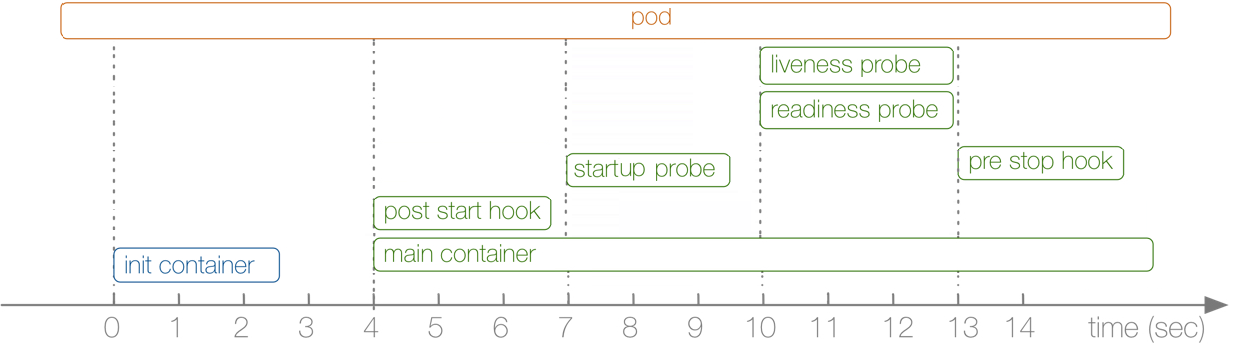
Init Containers
Init containers run independently of the main container. A pod can have any number of init containers, which execute sequentially. The main container starts only after all init containers have successfully completed. Init containers are primarily used to prepare the environment for the main container, such as writing data to shared storage volumes, which are then mounted into the main container.
Lifecycle Hooks
PostStart (Startup Hook)
Executed after the main container starts.Liveness Probe (Running Hook)
Checks if the container is still alive and functioning correctly.Readiness Probe (Running Hook)
Determines if the container is ready to serve external traffic.PreStop (Shutdown Hook)
Executed before the main container shuts down.
Pod Termination
When the API server receives a request to delete a pod, it removes the resource object accordingly.
Pod’s container modes
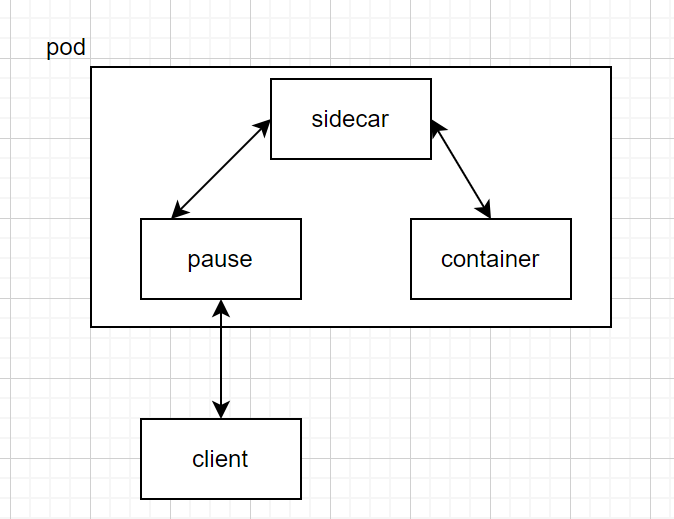
- default/normal mode: pause container manage all containers.
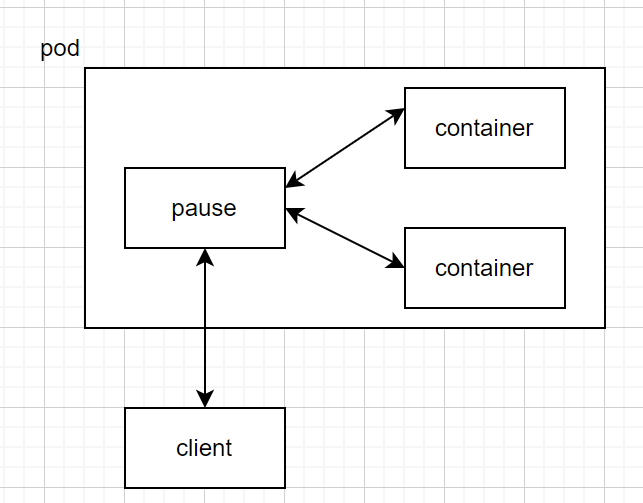
- sidecar mode: a secondary container that runs alongside the main application container in the same Pod, enhancing its functionality by providing auxiliary services such as logging, monitoring, proxying, or configuration management.
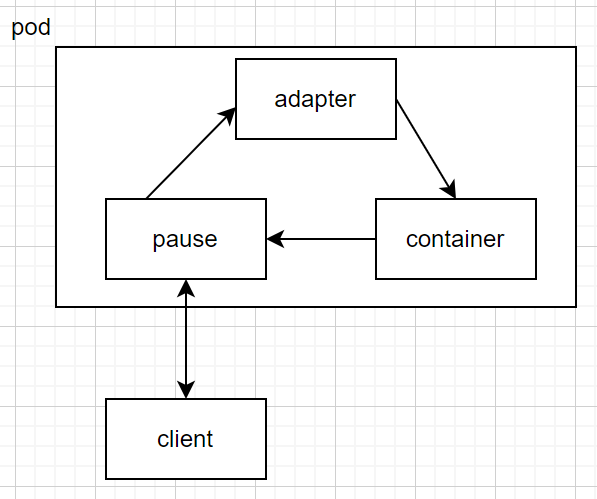
adapter: acts as a bridge or translator between the main application and external services, such as metrics collection, logging, or protocol conversion, enabling seamless integration without modifying the core application.
Ambassador: acts as a proxy, handling communication between the main application and external services, often used for API gateways, request routing, service discovery, and security enforcement.
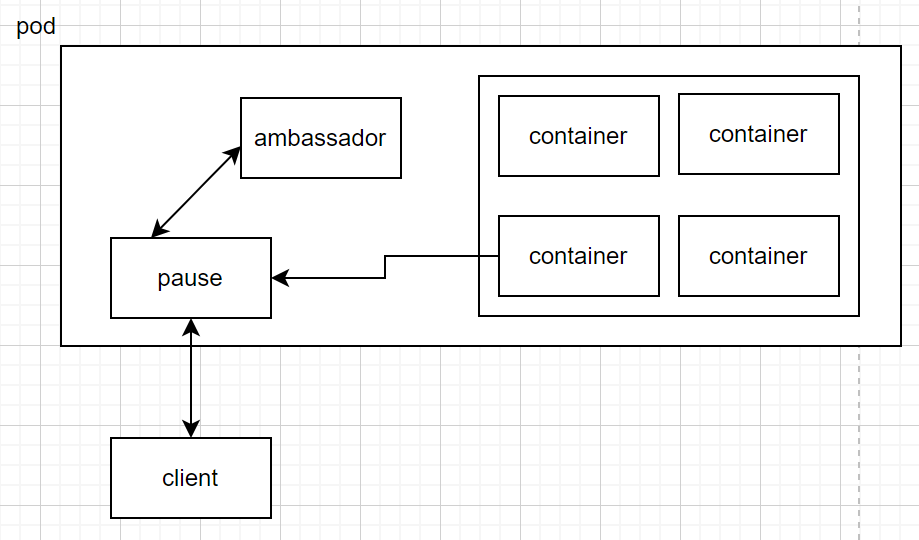
Pod status and restart policy
Status
Pending: The pod is created but waiting for resources, scheduling, or image downloads.
Running: The pod is successfully scheduled, and all containers are running or ready.
Completed: All containers in the pod have completed successfully and won’t restart.
Failed: At least one container in the pod has terminated unexpectedly or with an error.
Unknown: The pod’s status cannot be determined, usually due to node communication issues.
Restart policy
Always (Default)
The container is restarted no matter what when it exits.
Used for long-running applications.
OnFailure
The container is restarted only if it exits with a non-zero error code.
Used for batch jobs where failures should be retried.
Never
The container will not be restarted after it exits.
Used for one-time tasks where failure shouldn’t trigger a retry.
Container status in pod
Waiting
The container has not yet started due to image pulling, initialization, or other pending conditions.
Example reasons:
ContainerCreating,ErrImagePull,CrashLoopBackOff.
Running
The container is actively executing the main process.
It continues running unless stopped, restarted, or fails.
Terminated
The container has stopped either successfully or due to an error.
Has an exit code to indicate if it was successful (
0) or failed (non-zero).Example reasons:
Completed,Error,OOMKilled.
Comments
Join the discussionNo comments yet. Be the first to comment.